Studio
Everything, glued together in one place.
Studio is where your team connects its systems, models the business once, and builds the agents and automations that run on it. Changes reach production only when you say so.
01·Connections
Connect each system once, for every environment.
A connection keeps its own settings for test, staging, and production, and Studio tests all three from one screen. A saved key is never shown again.
02·Business model
Model the business in its own terms.
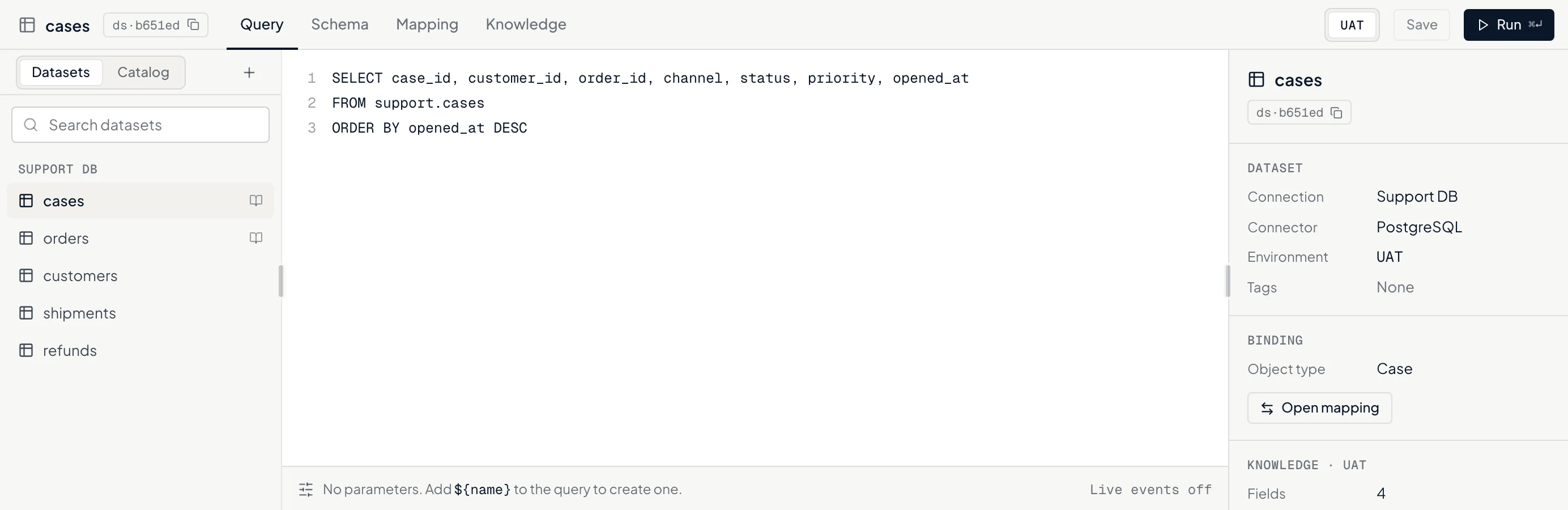
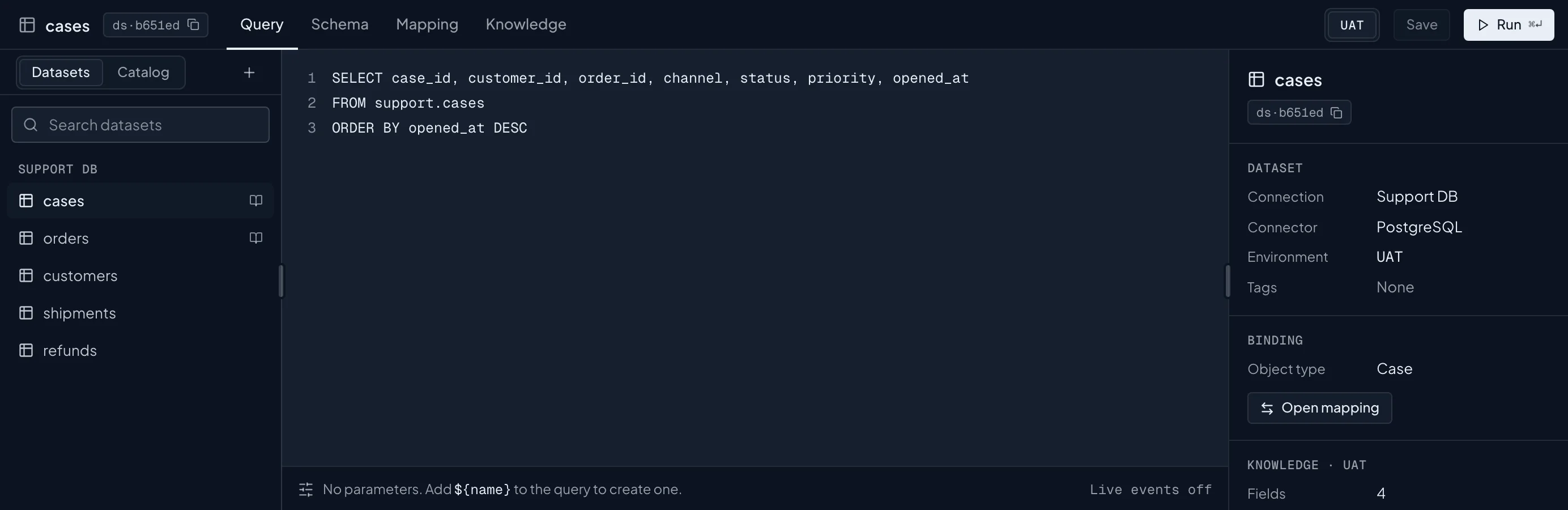
A dataset is a saved query on a connection. Map it to a business object such as Case or Household, and every agent that reads it reads the same rows.
03·Lineage
Trace any agent back to the systems it reads.
When someone asks where an answer came from, open the map. It traces each agent back through every business object and saved query to the system the data came from, so the question takes a minute instead of a meeting.
04·Agents and tools
Build agents on your business, with the tools you allow.
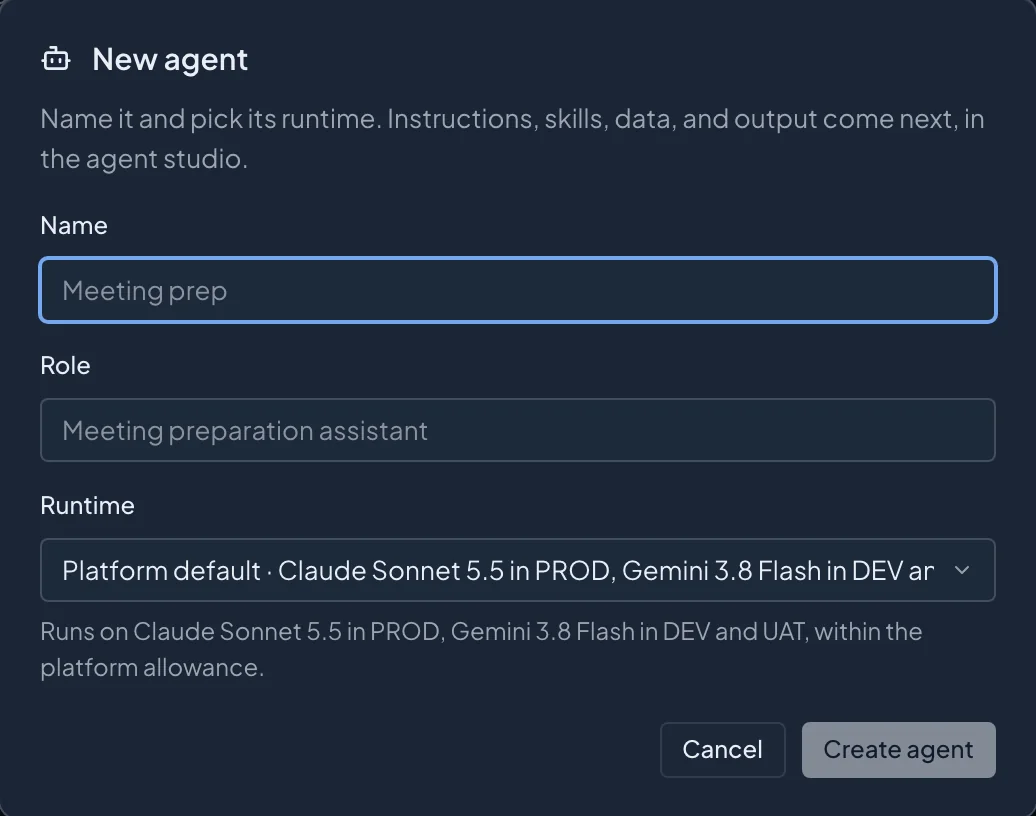
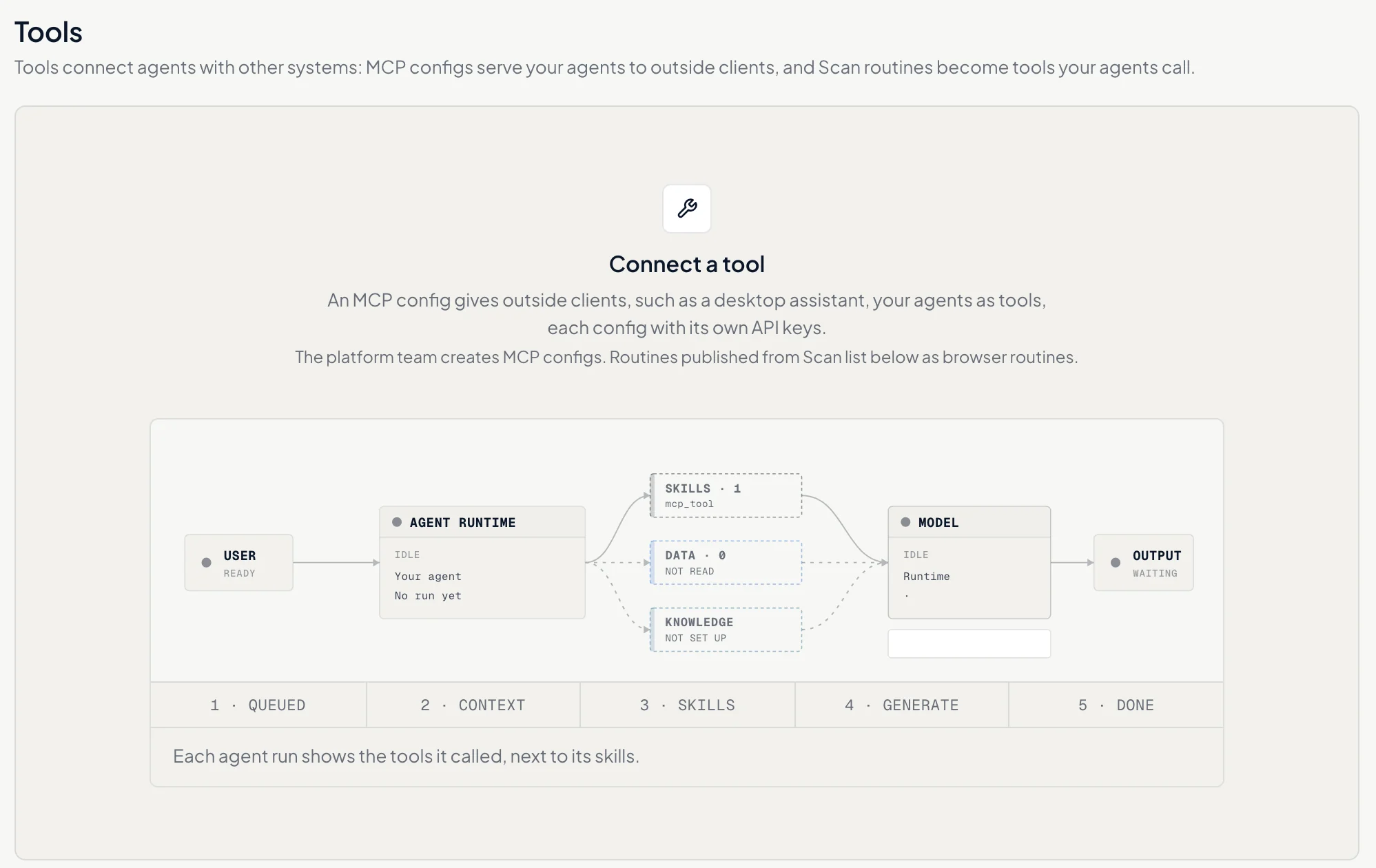
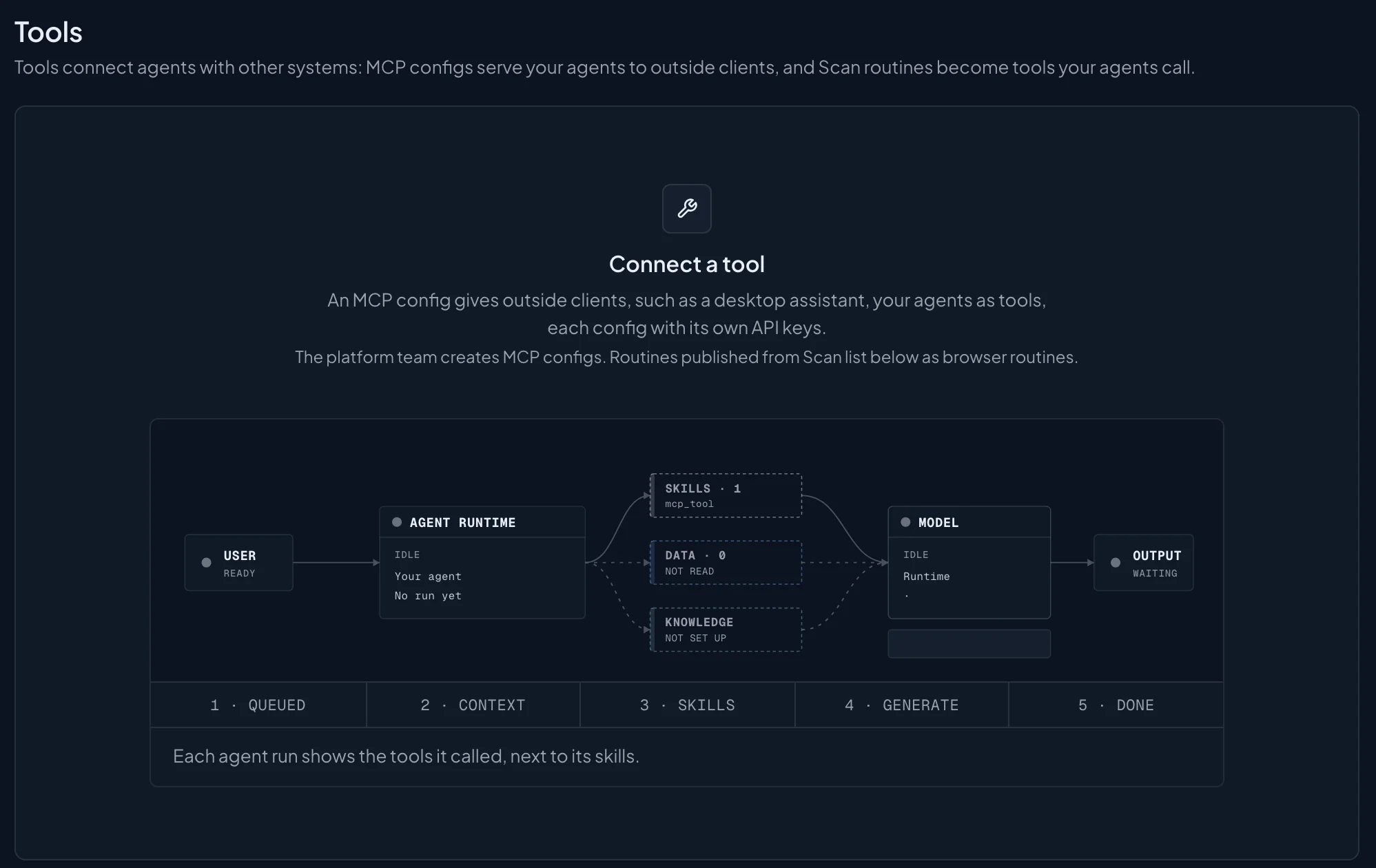
Give each agent a role, the data it may read, and its tools, including routines published from Scan. Try it in a sandbox, then publish a version to one environment.
How Scan records a routine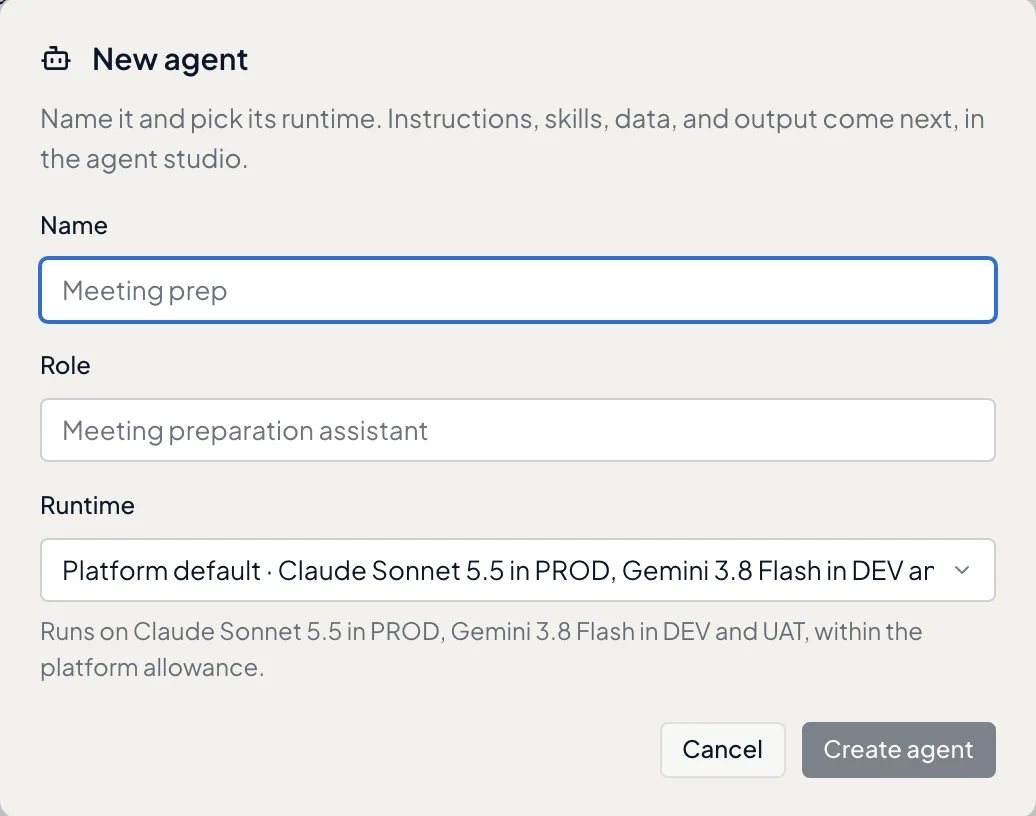
05·Automations
Run queries and agents on a trigger.
Build a workflow on a canvas from webhooks, schedules, queries, agents, and conditions. Then test it. Each step lights up as it runs, and every version is kept.
06·Runs and production
Every run recorded. Production waits for you.
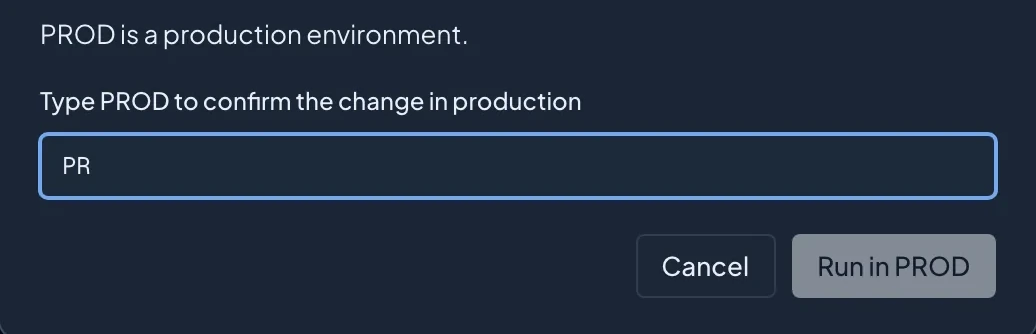
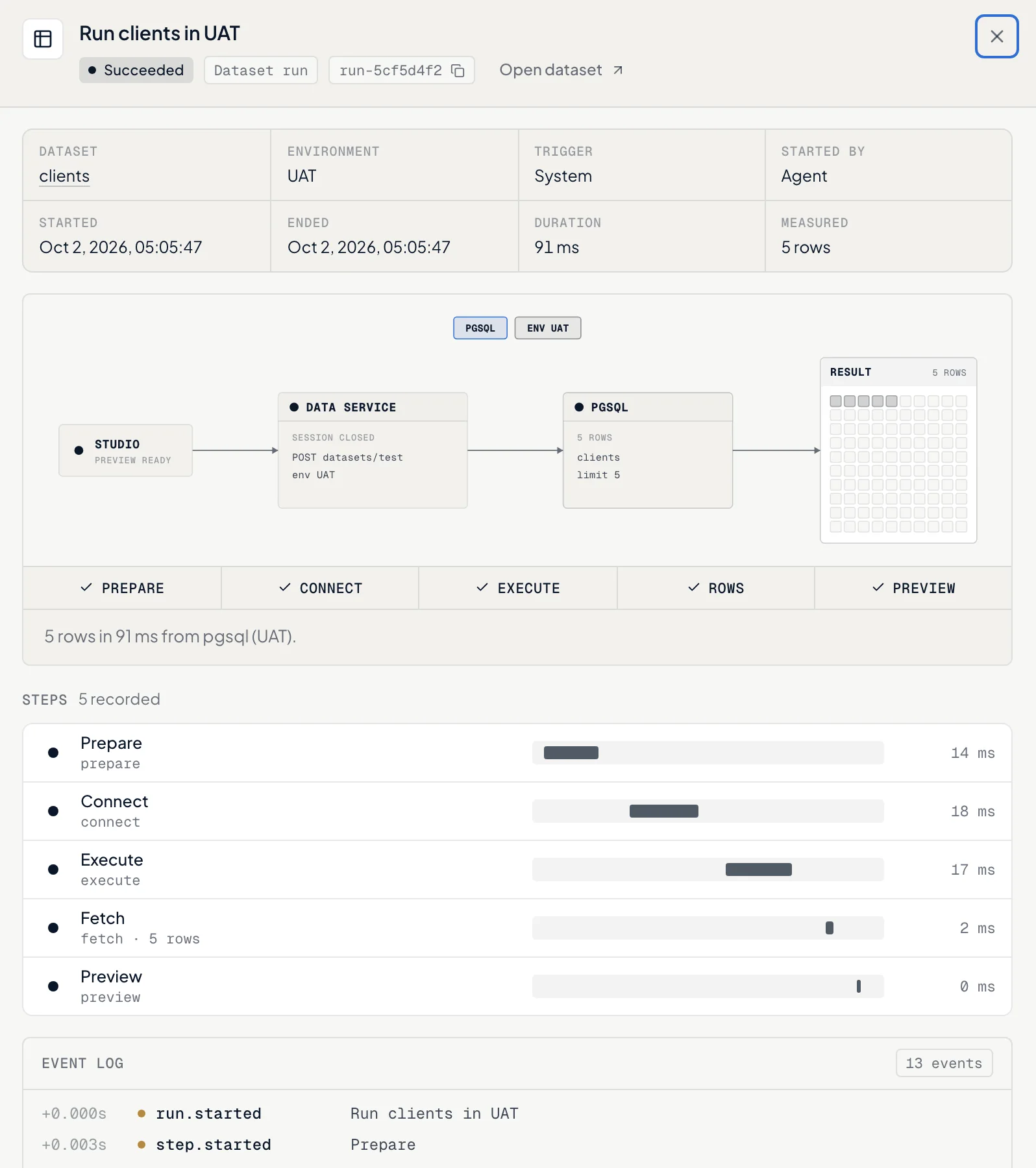
Each run keeps who started it, where it ran, every step with its timing, and its cost. A change in production asks you to type the environment's name first.
Security in detail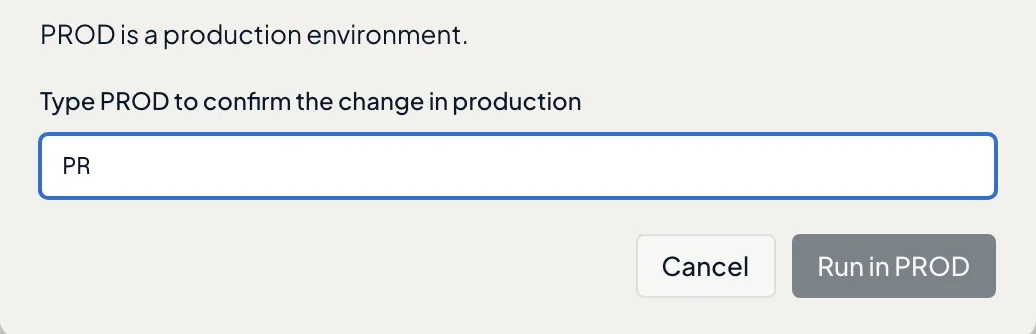
Start with one source and one agent.
We'll connect one source in staging and map it with you. The first agent you build on it is timed from its very first run.